
Shree Win Home Screen and Menu Guide
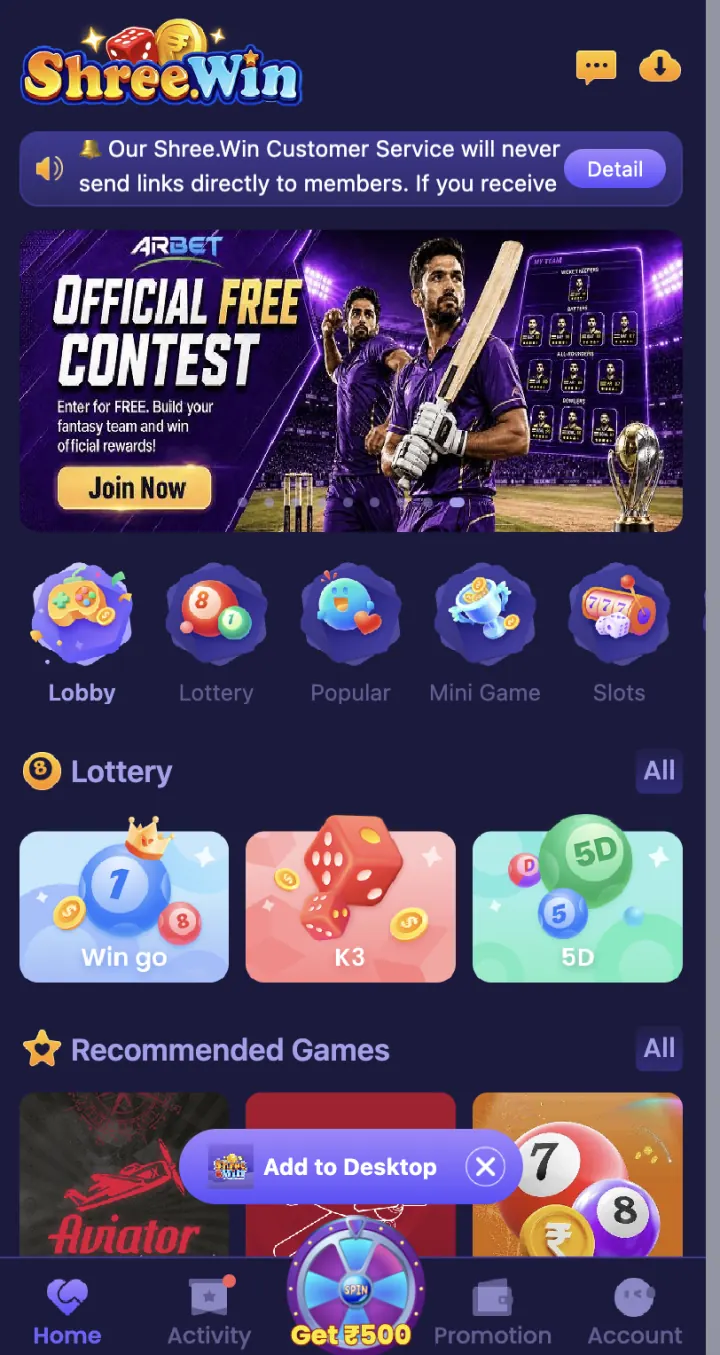
The home screen groups the platform into Lobby, Lottery, Popular, Mini Game and Slots. Use the account and activity areas to reach wallet records, offers and support without guessing menu names.
Open all steps and details +
Before you continue
Start with category tabs
Open each top category and notice which cards change. WinGo, K3 and 5D appear under Lottery, while Aviator is shown in Recommended Games.
Find account records
The account area includes Wallet, Deposit, Withdraw, VIP, Game History, Transaction and payment histories. Use records when checking any balance issue.
Open the Service Centre
Language, Settings, Feedback, Announcement, Customer Service, Beginner’s Guide and About Us are available from the service area shown.
Easy mistakes to avoid
- Tapping a game without checking its name.
- Looking for payment records only on the home screen.
- Using an external support link before checking Customer Service.
If the screen in front of you does not match these notes, slow down. The in-platform rule panel and Customer Service area are the right places to confirm a change.
Questions you may have
Where are Lottery games?+
Open the Lottery category. The Shree Win home screen shows WinGo, K3 and 5D cards there.
Where can I see old payments?+
Use Transaction, Deposit History or Withdraw History from the account area.
Safety before anything else
Keep your password, OTP, UPI PIN, bank PIN, withdrawal password and screen-control code to yourself. Do not install an APK or screen-sharing app sent by an unknown person.
Paid gaming can cause financial loss. This content is for adults. Check the rules that apply in your state or location, use only affordable money and step away if you start chasing a loss.
The key points
The home screen groups the platform into Lobby, Lottery, Popular, Mini Game and Slots. Use the account and activity areas to reach wallet records, offers and support without guessing menu names.
- Check the bottom menu.
- Use category tabs.
- Open Settings for account help.
See the full details +
Before you use this information
The platform groups many tools in one place. Move slowly between the game lobby, account records and support area so that you do not confuse a game screen with a payment or account screen. This page puts the visible steps into plain language. Live terms, limits and account decisions can change, so this article cannot confirm a result, bonus, payment or private account status.
Start with Start with category tabs and then look at Find account records. Read the words beside the button, not just its colour or place on the screen. If your version uses a different label, check the in-platform help before you tap.
A simple way to check the page
Make sure you are in the right account area, game, payment tab or support option. Match the name, date, period, amount or status with the record you need. Then decide if anything important is still missing. When a key detail is unclear, waiting is safer than guessing.
Keep a short private note for this topic if you need one. Write the page name, date, game period, transaction reference or exact error message. Leave out your password, OTP, UPI PIN, bank PIN, CVV and full payment number.
When the current screen is different
Websites and apps can change their layout, available games, limits and offer wording. An older screenshot can help you recognise a general label, but it cannot prove that the same button, amount or rule is active today. Use the current screen and current terms as the final reference.
If the page shows an unexpected warning, a new permission request, a different domain or an urgent message, close it and verify the address separately. For account or payment problems, contact Customer Service from inside the account area. This guide cannot see your private status and cannot approve a request.
Quick checklist before you continue
- I checked the full website address and the correct account or game section.
- I read the current rule, limit, status or eligibility text.
- I matched the correct date, period, amount or reference.
- I am using my own account and my own contact details.
- I will keep my password, OTP and payment PIN private.
- I will not rely on a guaranteed prediction, fixed return or urgent chat claim.
- I know where to find Customer Service if the record does not match.
- I can stop without borrowing money or chasing a previous loss.
Keep the decision simple
Use this order: find the correct Shree Win screen, read the current information, check the detail that matters, and only then decide. A countdown, banner or chat message should not rush you. Close the screen and come back later if you feel pressured.
When you finish, check the matching history or settings page instead of trusting memory. A small private record helps you spot a wrong period, amount, status or support reply. Keep it on your own device and remove private screenshots before you share your phone.